
Your Profile
Your profile is about you, the person - your name, your sign-in email, and how the app looks on your screen.
In your app: /profile/
Your profile controls three personal things: the name we use to greet you, the email address you sign in with, and whether the app appears in light or dark mode. None of these affect your business data or your scores - they are just your personal preferences.
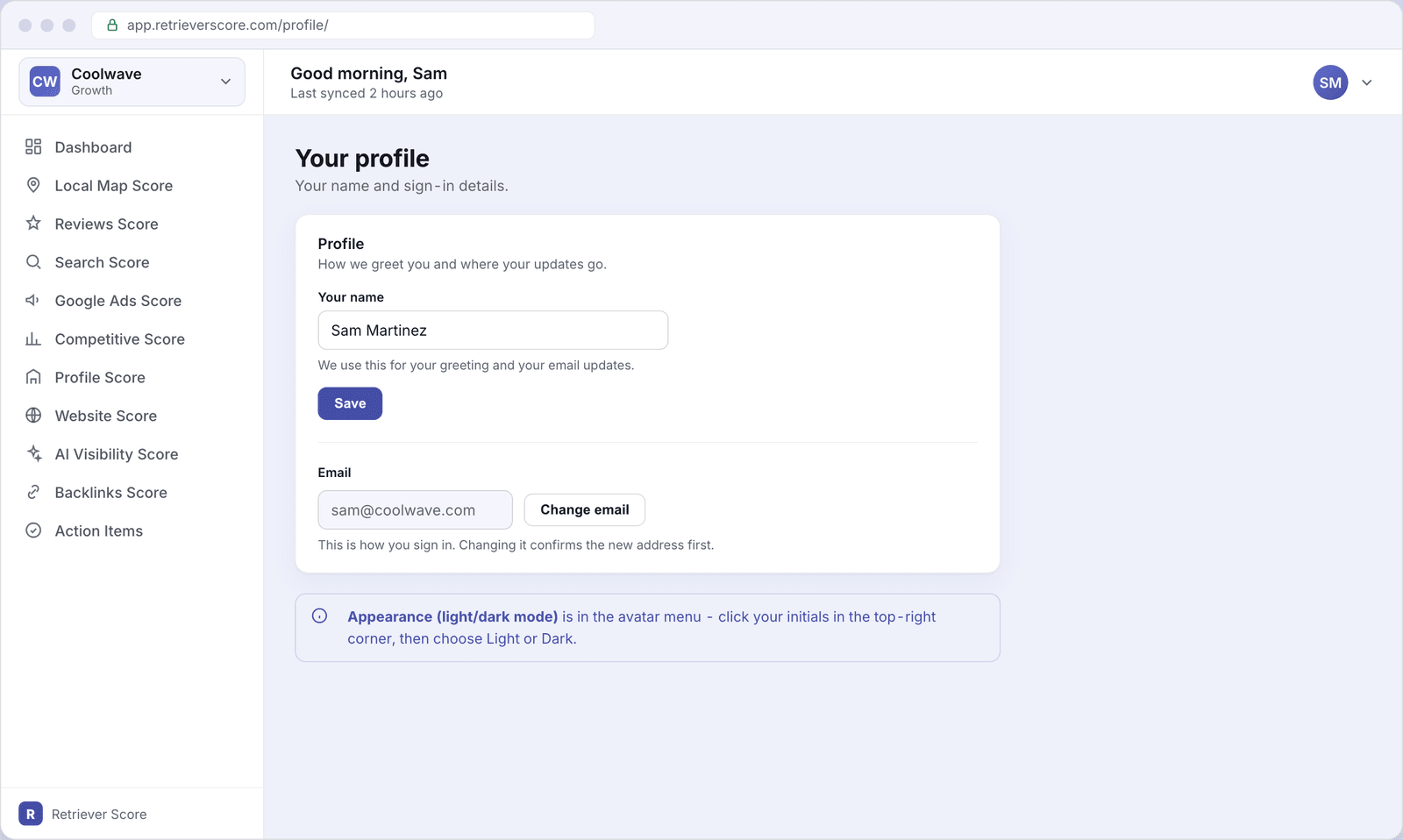
What's on this screen
Your name
The Your name field controls how the app greets you ("Good morning, Sam") and how your name appears in weekly email updates. Type your name, then click Save. The button is grayed out until you change something, and shows a brief "Saved" confirmation once it goes through.
If you leave this blank, the app uses your email address in its place. Adding your name makes the greeting feel a little more personal and keeps your email summaries easy to spot in a busy inbox.
The Email field shows the address you use to sign in. It is read-only - you can see it but not type directly into it. To change it, click Change email.
Changing your email is a two-step process to make sure the new address really belongs to you:
- Click Change email and type the new address.
- Click Send code. A 6-digit code lands in your new inbox (and a heads-up notice goes to your current address).
- Type the code into the box (or click the one-click confirm link in the email) and click Confirm new email.
Once confirmed, your new address is active immediately and you will use it the next time you sign in. The old address no longer works.
Appearance (light / dark mode)
The light and dark appearance setting is not on this screen - it lives in the avatar menu. Click your initials in the top-right corner of the app, then choose Light or Dark. Your choice is saved to your account, so it follows you across devices.
Your profile vs. Business settings
It is easy to mix these two up because they are both in the avatar menu. Here is the difference:
- Your profile (this screen,
/profile/) is about you - your name, your sign-in email, and the app appearance. Changes here only affect your personal experience. - Business settings
(
/settings/) is about your business - the name, website, and headquarters city that appear across the app, and the schedule for your weekly email summary. Changes there affect the whole workspace.
Both are reached from the avatar menu (click your initials in the top-right corner). Neither screen has an active item in the main sidebar - they sit outside the score screens and action items.
Changing your email? Make sure you have access to the new inbox before you start - the confirmation code expires in 15 minutes. If you typed the wrong new address by mistake, click Cancel and start again with the correct one.