
Plan & Billing
Your subscription plan, how many locations it covers, and the payment card we charge - all in one place.
In your app: /plan/
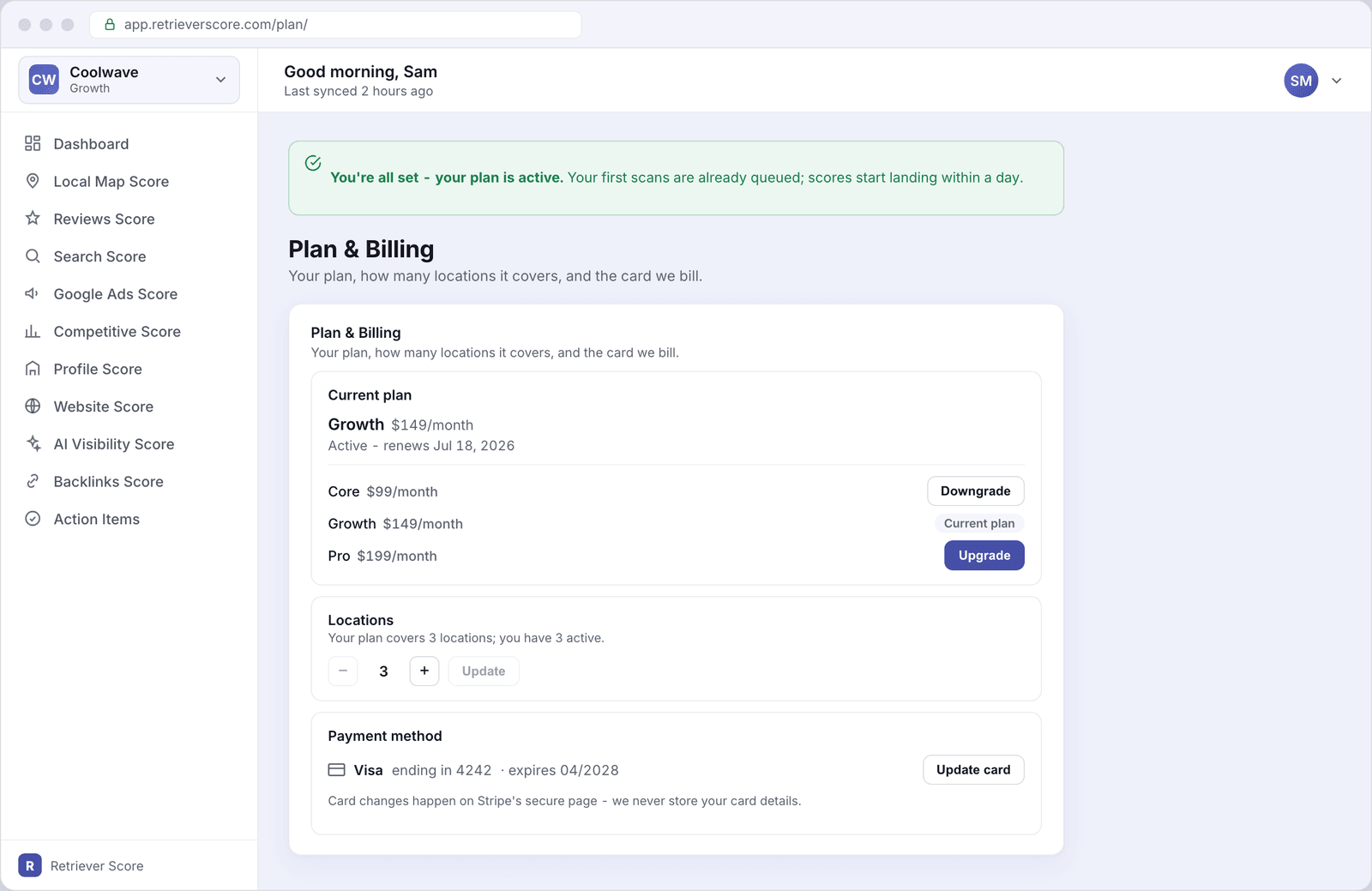
The Plan & Billing screen shows everything about your subscription: which plan you are on, how many locations it covers, and the card we charge each month. You can switch plans, add or remove locations, and update your payment card here without calling anyone.
What's on this screen
Success and canceled banners
If you just completed (or canceled) a checkout, a banner appears at the top of the screen to confirm what happened.
- Green "You're all set" banner - your plan is now active and your first scans are already queued. Scores start updating within a day.
- Gray "Checkout was canceled" banner - nothing was charged. You can pick a plan any time by coming back to this screen.
The banner only shows once and disappears when you reload the page.
Current plan
The Current plan card shows which plan you are on right now (Core, Growth, or Pro), the base monthly price, and the renewal date. Below that is a short list of all three plans so you can compare and switch:
- Core - $99/month. The full intelligence stack for your business: all nine scores, 25 keywords, 5 competitors.
- Growth - $149/month. Deeper coverage and faster updates: 50 keywords, 10 competitors, daily profile monitoring.
- Pro - $199/month. Maximum depth: 100 keywords, 25 competitors, weekly ad tracking.
Every plan includes every feature - the tier only sets the depth and how often data is refreshed.
Click Upgrade to move to a higher plan right now (Stripe charges the prorated difference immediately). Click Downgrade to schedule a move to a lower plan at your next renewal date - nothing is charged today and you keep your current plan until then.
Locations
The Locations card shows how many locations your plan currently covers and how many are active. Use the minus and plus buttons to change the count, then click Update to apply the change.
Adding a location increases your monthly charge right away (Stripe prorates the difference for the rest of the billing period). Removing a location reduces your charge starting on your next invoice - there is no credit for the current period.
If the count shows fewer locations than you have active, the Update button stays grayed out. You need to deactivate some locations on the Locations screen first before you can drop the plan count below your active total.
Payment method
The Payment method card shows the card currently on file - the brand (Visa, Mastercard, etc.), the last four digits, and the expiry date. Click Update card to open Stripe's secure card-update page. We never store your card number directly - all payment details live on Stripe's servers.
If you are still in your free trial, no card is required yet. The card field simply shows "No card needed during your free trial" until you choose to subscribe.
How to get here
Plan & Billing is not in the main sidebar. You reach it from the avatar menu in the top-right corner of the app (click your initials, then "Plan & Billing"), or from the business switcher in the top-left corner of the sidebar.
Free trial and upgrading
If you signed up for the 14-day free trial, this screen shows a blue banner reminding you how many days are left. Click Subscribe now in that banner (or choose any plan in the tier list) to pick a paid plan before your trial ends. Your scores keep updating without any gap.
After your trial ends, the banner turns amber and your scores stop refreshing until you add payment. Come back to this screen, choose a plan, and your scans resume the same day.
Volume discounts apply automatically. If you cover more than one location, each additional location costs less than the one before it. The Locations card shows the updated monthly total whenever you adjust the count, so you always know what the change will cost before you confirm.