
Signing In
Retriever Score uses a one-time code instead of a password. You give your email, we send a 6-digit code, and you're in - nothing to remember or reset.
In your app: /signin/
Every time you sign in, Retriever Score emails you a fresh 6-digit code. You type it in, and you're taken straight to your dashboard. There is no password to create, store, or forget - and no risk of someone guessing it.
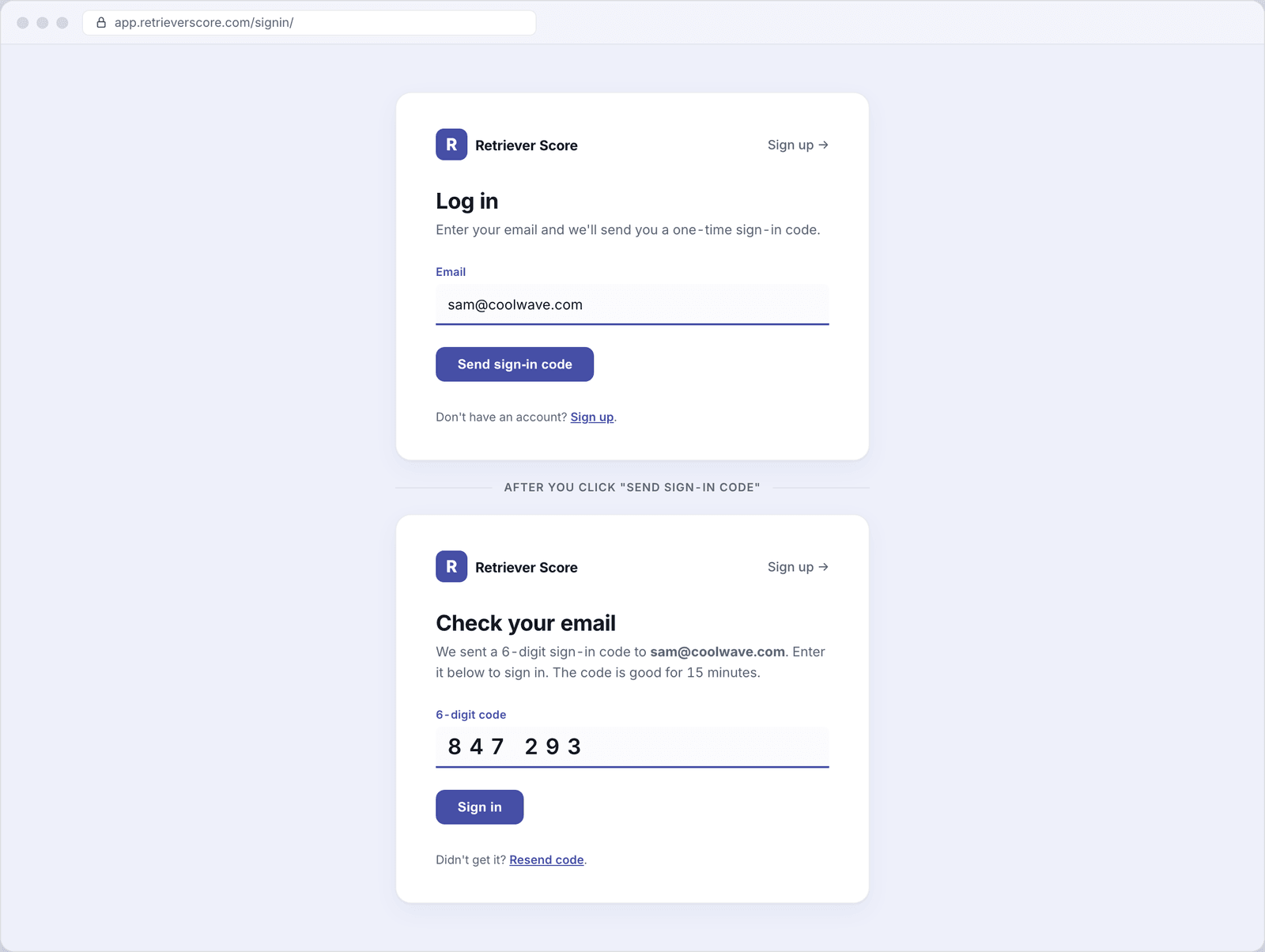
What's on this screen
The sign-in screen has two steps. You move from Step 1 to Step 2 automatically after you click the button.
Step 1 - Enter your email
Type the email address linked to your Retriever Score account and click Send sign-in code. That's the only thing on this step - there is no password field. Within a few seconds, an email will land in your inbox with your code.
Step 2 - Enter the 6-digit code
Open the email from Retriever Score, find the 6-digit number, and type it into the box. The code is good for 15 minutes. Click Sign in and you'll go straight to your dashboard.
Why no password?
Passwords get forgotten, reused, or stolen. A one-time code is safer because it only works once, it expires in 15 minutes, and it goes only to your email inbox - so even if someone knows your email address, they can't get in without also having access to your email. It also means you never have to go through a "reset my password" flow.
What to do if the code doesn't arrive
A few things to check before requesting a new code:
- Check your spam or junk folder. The email comes from Retriever Score and has "sign-in code" in the subject. Some email providers drop it into spam the first time.
- Wait 30 seconds. Email delivery is usually instant, but can occasionally take a moment.
- Request a new code. On the code-entry step, click Resend code. A fresh code will be sent and the old one will no longer work. You can resend once per minute.
- Start over. If you think you mis-typed your email, go back to the sign-in screen and enter it again from scratch.
Mark the sender as safe. Adding the Retriever Score sending address to your contacts (or "safe senders" list) means your email provider will stop treating sign-in codes as spam.
Don't have an account yet?
If you haven't created your account, the sign-in screen has a Sign up link in the top-right corner of the card. See Creating your account for a walkthrough of the setup steps.