
Dashboard
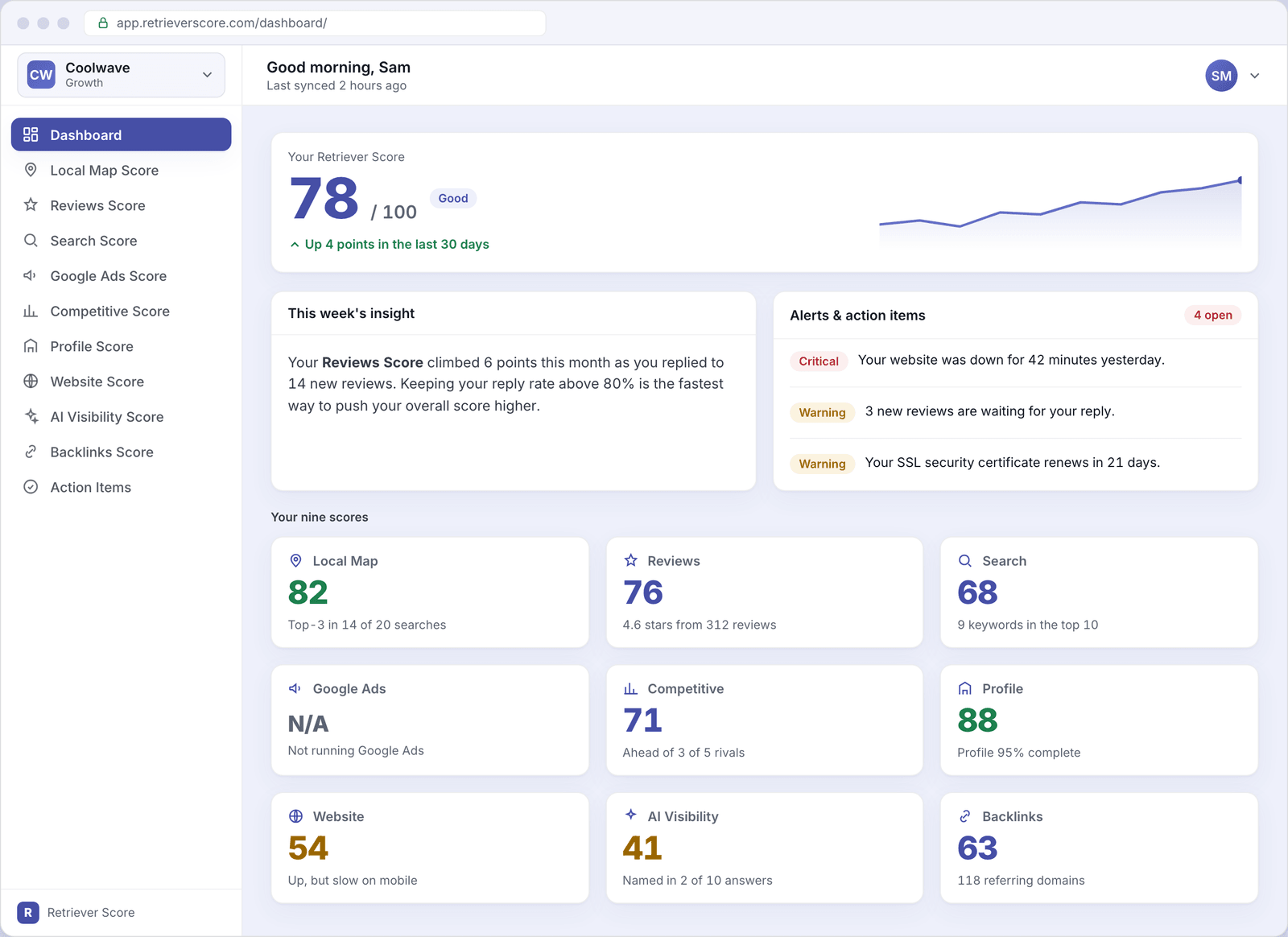
Your home screen. It ties everything together: one overall score, a plain-English insight, your most urgent to-dos, and a card for each of your nine scores.
In your app: /dashboard/
The dashboard is the first thing you see when you sign in. Think of it as the health check for your business's entire online presence - the parts that decide whether a customer searching nearby finds you or finds a competitor. Everything here is a summary; click into any card to see the full detail.
What's on this screen
Working down the page, the dashboard has four parts. Here's what each one is telling you.
Your Retriever Score
The big number at the top - a single grade from 0 to 100 that rolls up all nine of your individual scores into one. The line chart beside it shows the trend over the last 12 weeks, and the note underneath ("Up 4 points in the last 30 days") tells you which way things are heading. This is the one number to glance at each week.
This week's insight
A short, written takeaway that points out the single most useful thing happening right now - for example, which score moved the most and what drove it. It's there so you don't have to hunt through every screen to know what changed.
Alerts & action items
Your most urgent to-dos, newest and most serious first. Each item is tagged Critical, Warning, or Info so you know what needs attention today versus what can wait. This card shows just the top few; the full list lives on the Alerts & action items screen.
Your nine scores
A card for each area we track - Local Map, Reviews, Search, Google Ads, Competitive, Profile, Website, AI Visibility, and Backlinks. Each shows that area's score, a one-line summary, and a color that tells you how it's doing at a glance. Click any card to open the full screen for that score.
How to read the colors
Every score uses the same simple traffic-light system, so once you learn it on one screen you know it everywhere:
- Green (80-100) - strong. You're doing well here; keep it up.
- Blue (60-79) - good, with room to grow.
- Gold (40-59) - fair. Worth some attention soon.
- Red (below 40) - needs work. Start here.
A "N/A" score isn't a bad thing. Google Ads shows N/A when you're not running paid ads - it simply isn't counted against you. The same goes for any area that doesn't apply to your business.
What to do first
You don't need to read every screen to make progress. The fastest routine is: glance at your overall score and its trend, read this week's insight, then clear the top one or two items in Alerts & action items. Those alerts are already sorted by impact, so working them top-down is the surest way to move your overall score up.