
Competitor Details
A full look at one competitor: their Google profile, where they rank on your tracked searches, and exactly what ads they're running.
In your app: /competitor/
The competitor detail screen opens when you click Details on any competitor row in the Competitive Score screen. It gives you everything Retriever Score knows about that one business in a single place - their Google profile facts, the specific search terms they contest with you, their map ranking data, and the ads they're currently running.
Use this screen to understand why a competitor is outranking you and to find the gaps in their position that you can exploit.
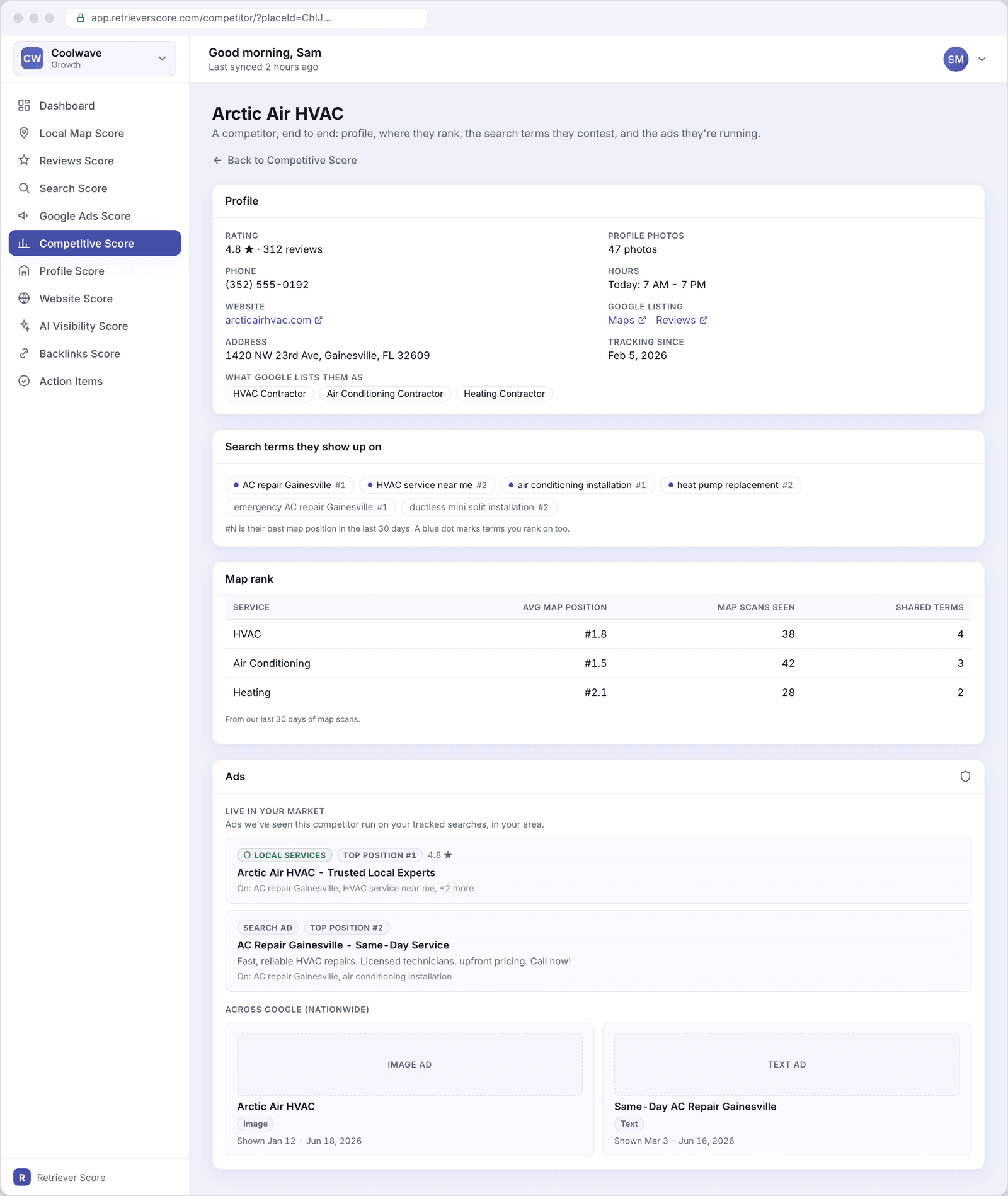
What's on this screen
Profile
The profile card shows everything Retriever Score has pulled from this competitor's Google Business Profile:
- Rating and review count - their star rating and how many reviews they have. This is one of the most important competitive signals. A competitor with hundreds more reviews than you is likely to outrank you in the map pack, all else being equal.
- Profile photos - how many photos they have on their Google listing. Profiles with more photos tend to get more clicks.
- Phone and hours - pulled from their live Google listing.
- Website - links to their site so you can see what they're saying to potential customers.
- Google listing links - quick links to their Maps listing and their Google reviews page.
- Address - their registered business address.
- Tracking since - when Retriever Score first detected this competitor on your tracked searches.
- What Google lists them as - the Google Business categories assigned to their profile. If they're listed in a category you're not, that may explain why they appear for certain searches you're missing.
Search terms they show up on
A list of your tracked search terms where this competitor has appeared in Google's map results in the last 30 days, along with their best map position for each. A blue dot next to a term means you also rank on that term - those are the searches where you're competing head to head. Terms without a dot are searches where they show up but you don't, which is a gap worth noticing.
The position number (like "#2") is their best ranking across all the map points we scanned for that search - not their average. If they're consistently showing "#1" on searches where you're not appearing, that's where a stronger local presence on your part could make the biggest difference.
Map rank table
A breakdown of this competitor's map standing by service type, based on our last 30 days of map scans. The table shows:
- Service - the type of service (HVAC, plumbing, etc.) this row covers.
- Avg map position - their average ranking across all map points where they appeared for this service. Lower is better. A "#1.5" means they're nearly always at the top when they appear.
- Map scans seen - how many of our map check points they showed up at. A competitor with a high count is visible across a large area; a low count means their coverage is narrower.
- Shared terms - how many of your tracked search terms they also rank for in this service category. More shared terms means more direct competition.
Ads - Live in your market
The ads section opens with the most useful piece: ads this competitor has actually run on your tracked searches, in your local area. These come from Retriever Score monitoring the real Google search results pages for your target keywords.
Each ad shows the type (a Local Services Ad, which carries a Google guarantee badge, or a standard Search ad), the ad's headline and description if visible, the position it appeared at, and which of your tracked searches it showed up on.
Reading a competitor's ad copy tells you what they're emphasizing to win customers: price, speed, warranty, trust signals. If their messaging is working and their ad rank is high, consider whether your own ads or website copy addresses those same concerns.
Ads - Across Google (nationwide)
Below the live local ads is a wider library of ad creatives from Google's Ads Transparency Center - ads this competitor has run across Google nationally, not just in your local market. These may include image ads, text ads, and video ads. They're useful for seeing what this competitor's broader advertising strategy looks like - the imagery, messaging, and offers they use to attract customers.
How to use this screen
The competitor detail screen is most valuable when you have a specific question: why is this competitor beating me? Here are a few common reads:
- They have far more reviews. Check their rating count versus yours (visible in their profile card). If they have 300 reviews and you have 80, that's likely a big factor in their higher map ranking. Focus on your Reviews Score and build a system for asking every customer to leave a review.
- They show up on searches you don't. Look at the search terms list for terms without a blue dot - those are searches they appear on that you're missing. If those searches have significant volume, they're a gap in your map presence. Check your Local Map Score to see your current coverage.
- They're running Local Services Ads and you're not. Local Services Ads (the green-badged "Google Guaranteed" listings) appear above standard ads and above the map pack. If a competitor has an LSA and you don't, that's worth investigating with your Google Business Profile or ad manager.
- Their ad copy is stronger than yours. If their ads feature specific trust signals (licensed, insured, same-day service) that yours don't, that could explain their higher click rates and better ad position.
You can switch between competitors without going back to the Competitive Score screen. A competitor switcher at the top of this page lets you jump directly to any other tracked competitor so you can compare profiles side by side.