
Locations
Every location your workspace tracks, with your headquarters at the center. Open any location to see its Google listing, star rating, and sync status.
In your app: /locations/
If your business operates from more than one address - a main office plus a branch, or a shop with a second location across town - Retriever Score tracks each one separately. The Locations screen shows all of them at a glance and lets you manage which one is your headquarters and which ones are actively being scanned. You reach this screen from the business menu in the top-left corner of the app (click your business name, then Locations).
What's on this screen
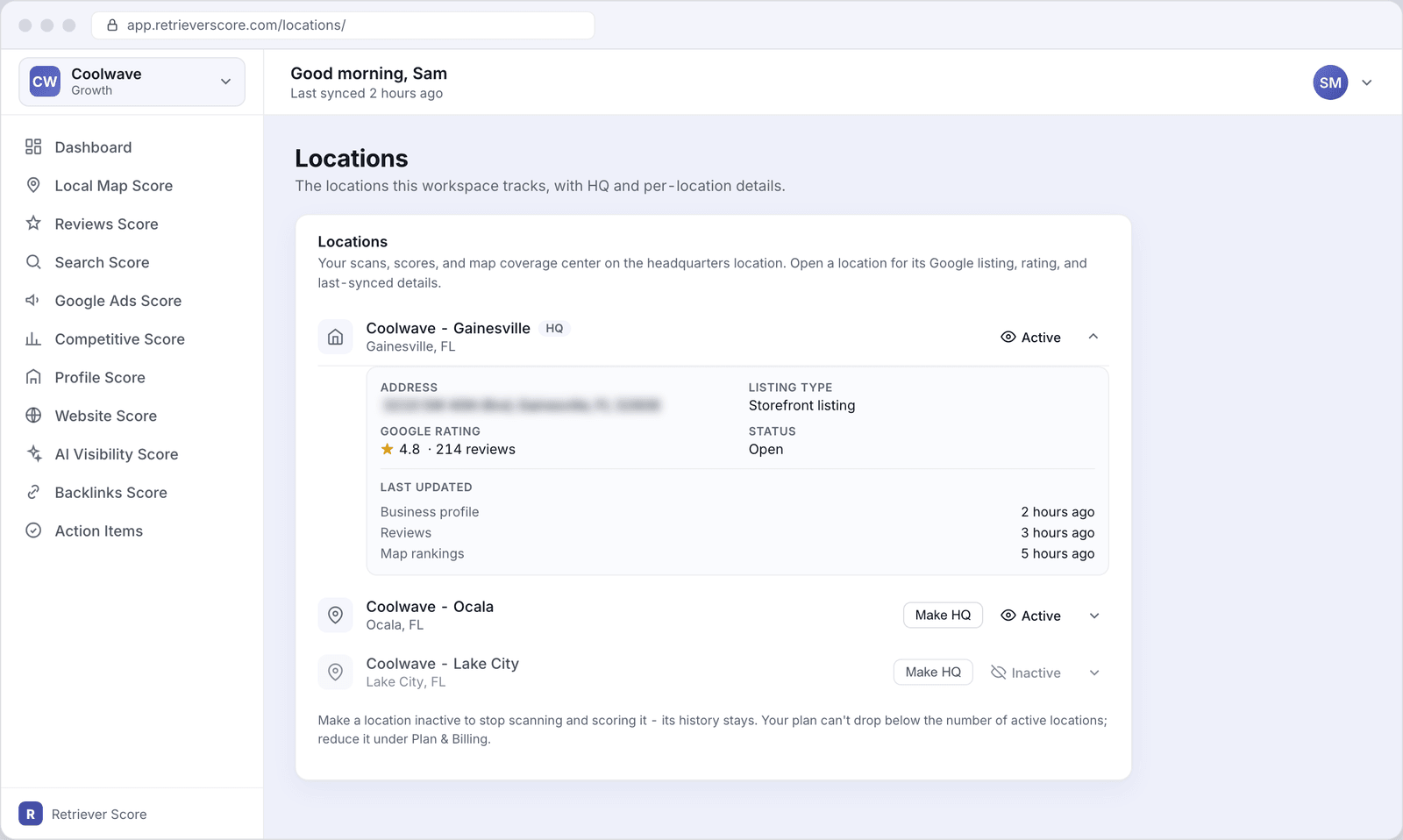
The screen has one card - Locations - that lists every location in your workspace. Each row is collapsed by default into a one-line summary. Click the chevron on the right to expand a location and see its full detail.
Location row (collapsed)
Each collapsed row shows a location name (the name as it appears on your Google Business Profile), the city and state, an HQ badge for your headquarters, and the Active or Inactive status button. Non-HQ locations also have a Make HQ button.
Location detail (expanded)
Expanding a row reveals the full street address, the listing type (storefront or service-area listing), your Google star rating and review count for that location, and the current business status (Open, Temporarily closed, etc.). At the bottom of the panel you see the Last updated block: the last time Retriever Score pulled fresh data for the business profile, reviews, and map rankings for that location.
Active / Inactive toggle
Each non-HQ location has an Active or Inactive button. An active location is fully scanned: its reviews, map rankings, and profile data are all collected and scored. An inactive location keeps its history but stops being scanned - useful if you have temporarily closed a branch or are no longer operating there. Your plan counts your active locations, so deactivating a location also frees up that slot under Plan & billing.
Make HQ button
Any non-HQ location has a Make HQ button. Clicking it opens a confirmation dialog and then switches your headquarters to that location. Your scans, Local Map Score coverage, and profile data all anchor to the headquarters address, so the next round of scans will shift focus to the new HQ. The old HQ becomes a regular active location.
What headquarters means
Your headquarters is the primary location that Retriever Score uses as the center of everything - your Local Map Score coverage area radiates from there, your Google Business Profile data is pulled from that listing, and the Google Business posts on the Posts screen are captured for that location. You can only have one headquarters at a time.
For most businesses with a single location, the choice is obvious. If you run multiple branches, set your HQ to whichever location you care most about ranking in Google search and on the map.
Service-area vs. storefront listings
Google distinguishes between two types of business listings:
- Storefront listing - your business has a physical address that customers can visit. Your address shows publicly on Google Maps.
- Service-area listing - you travel to customers (plumbing, HVAC, landscaping, etc.) rather than having a walk-in location. Google hides your exact address from the public but still places you on the map for service-area searches. If your listing shows this type, the address in the expanded detail is your internal reference only.
Adding or removing locations. To add a new location, contact our support team - adding a location ties into your billing and requires us to connect the new Google Business Profile listing to your workspace. Locations cannot be permanently deleted from this screen; contact support if you need to remove one entirely.