
Alerts & Action Items
Your full to-do list. Every alert we detect for your business lands here, sorted by urgency, so you always know what to fix first.
In your app: /action-items/
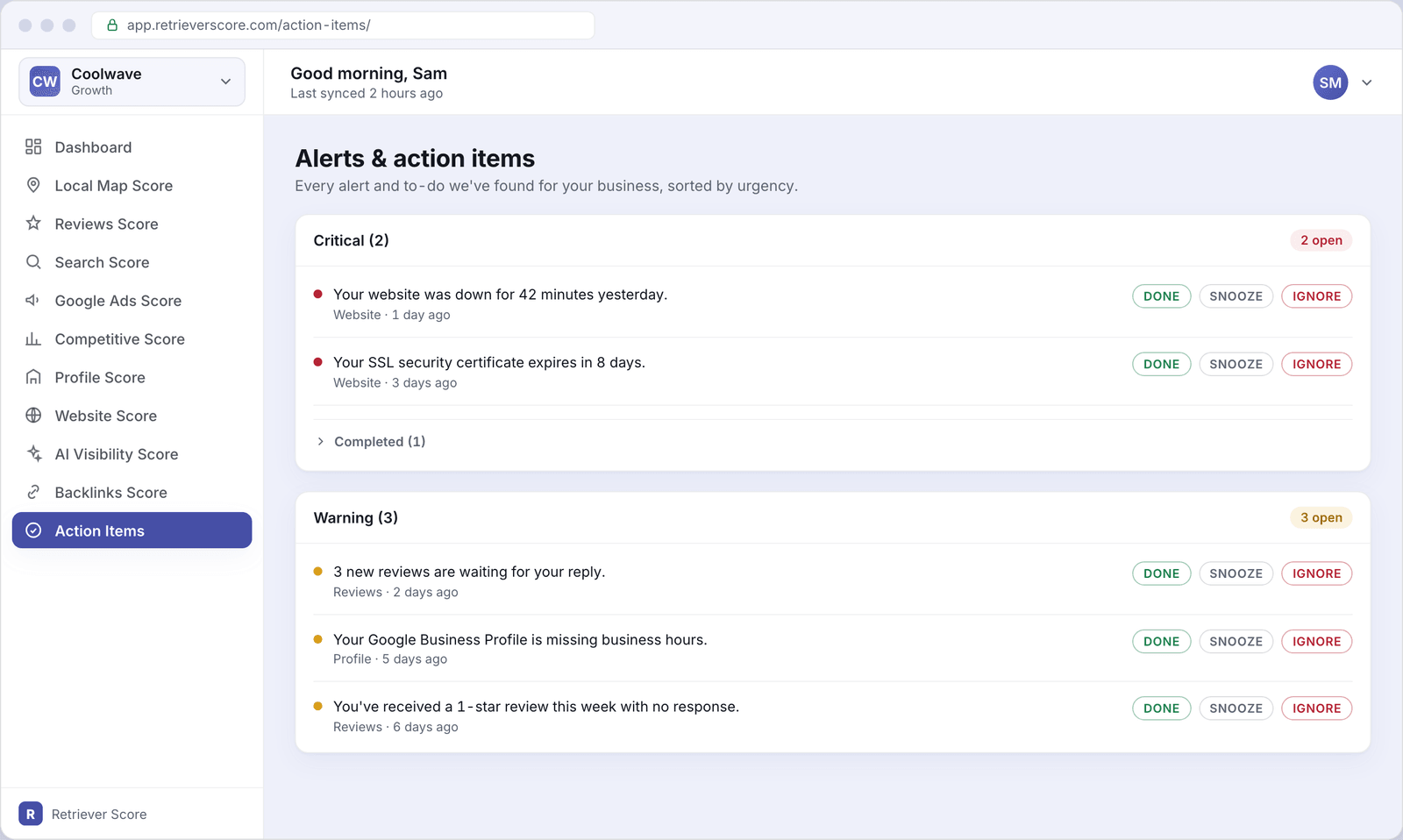
The Alerts & action items screen is the expanded version of the “Alerts & action items” card you see on the dashboard. The dashboard shows just the top few items; this screen shows all of them, grouped by how serious they are. Work through it top to bottom and your score will follow.
What's on this screen
The page has one card per severity level - Critical at the top, then Warning, then Info. Each card lists the open alerts for that level. Inside each card you may also see collapsed groups for items you've already handled.
Critical card
The most urgent problems - things that are actively hurting your business right now, like a website that went down or a security certificate about to expire. These need attention today. The card header shows how many are currently open.
Warning card
Issues that are hurting your score or will turn into bigger problems if left alone - for example, unanswered reviews, a profile missing key information, or a low-star review with no response. They are not on fire yet, but they are worth fixing this week.
Info card
Helpful observations and opportunities - things that are not urgent but are worth knowing about, like a competitor who recently gained new reviews or a keyword where you are close to reaching the top three. Act on these when you have time.
Completed, Snoozed, and Ignored groups
At the bottom of each severity card you may see collapsed sections - Completed, Snoozed, and Ignored - for items you have already acted on. Click the section label to expand it and see those items (or restore any that you handled by mistake). Items you completed or ignored more than seven days ago drop off automatically to keep the list clean.
What the three severities mean
- Critical - something is broken or expiring imminently. Left unaddressed, this will directly cost you customers or score points. Aim to clear Critical items the same day they appear.
- Warning - something is slipping. It is not a crisis yet, but it will become one if you ignore it for long. Try to clear Warnings within the week.
- Info - a useful heads-up. No action is required right now, but being aware of it helps you stay ahead of competitors.
What each button does
Every open row has three buttons. Here is exactly what happens when you click each one:
Done
Marks the item as completed. The row moves to the Completed group inside the same card (collapsed by default) and stays visible there for seven days as a record before dropping off. Use this when you have actually resolved the problem - for example, you replied to the review or renewed the certificate.
Snooze
Hides the item for 30 days, then automatically resurfaces it for you. The row moves to a Snoozed group at the bottom of the card (collapsed) and shows the date it will reappear. Use Snooze when the alert is valid but you cannot deal with it right now - for instance, you are waiting on a contractor to fix the website issue.
Ignore
Dismisses the item permanently (for now). The row moves to an Ignored group and stays visible for seven days so you can restore it if you change your mind. Use Ignore when the alert does not apply to your business - for example, you intentionally do not list weekend hours.
Restore
Appears on rows inside the Completed and Ignored groups. Clicking it moves the item back to your open list so you can take a different action. Handy if you tapped Done or Ignore by mistake.
Snoozed items come back on their own. You do not need to remember to check - after 30 days the item resurfaces in your open list automatically. If the problem is still there, it will stay open; if it resolved itself in the meantime (like a website that came back up), you can mark it Done then.
The fastest way to use this screen
Start at the top of the Critical card and work down. For each item, ask yourself: have I fixed this? If yes, hit Done. Not right now but will be? Hit Snooze. Does not apply to you? Hit Ignore. Once the Critical card is clear, move to Warnings. You do not need to touch the Info card every week - a quick scan every month or two is enough.